What is nordvpn diagnostics your ultimate troubleshooting guide: Quick fixes, deep dives, and tips
 Carla Molina·Updated ·11 min
Editor's pick: NordVPN — fast, secure VPN — Strong encryption, a no-logs policy and apps for every device. 30-day money-back guarantee. Get NordVPN →
What is nordvpn diagnostics your ultimate troubleshooting guide? It’s a comprehensive walkthrough that helps you troubleshoot NordVPN issues—from connection drops to slow speeds and DNS leaks—using built-in diagnostic tools and best practices. Below is a practical, easy-to-follow guide with actionable steps, checklists, and real-world tips to get you back online securely fast.

| VPN | Obfuscation | From / month | Plan | Free plan | Refund | Alipay | UnionPay | Crypto | Website opens in China | Trustpilot | |
|---|---|---|---|---|---|---|---|---|---|---|---|
 NordVPN | Turn on manually Obfuscated Servers / NordWhisper | $3.49/mo | 27 months: $94.23 | No | 30 days | ? | ✗ | ✓ | ✓ | ✗ Blocked | 4.2/5 (51,628 reviews) |
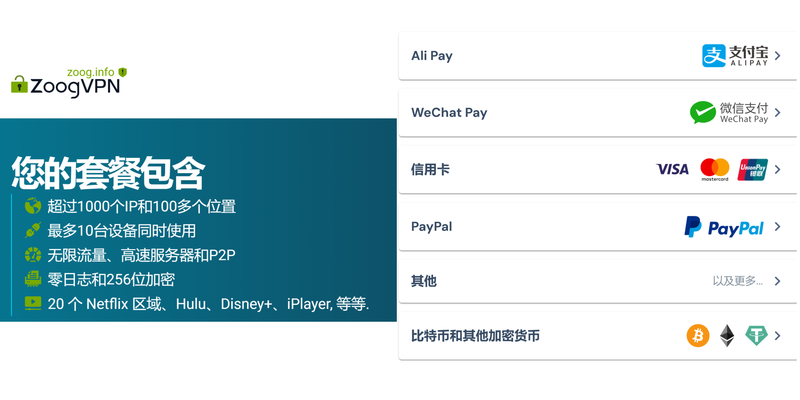
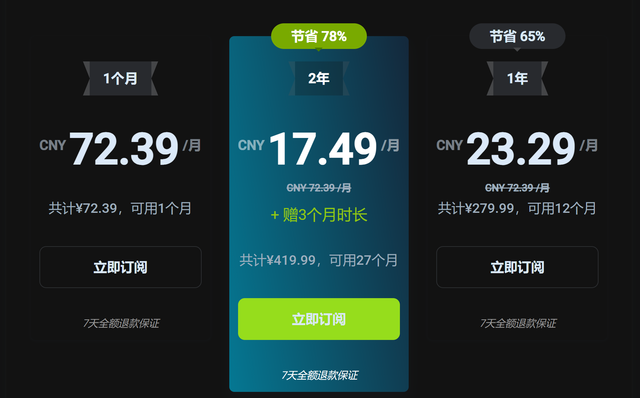
 ZoogVPN | Turn on manually Shadow | $2.49/mo | 27 months: $59.99 | Yes | 7 days | ✓ | ✓ | ✓ | ✓ | Official site blocked; our special link opens (4.4 s) | 4.2/5 (195 reviews) |
 ExpressVPN | ✓ On by default all servers | $3.00/mo | 28 months: $84 | No | 30 days | ✗ | ✗ | ✓ | ✗ | ✗ Blocked | 4.4/5 (29,706 reviews) |
 Surfshark | ✓ On by default Camouflage, with OpenVPN | See site | See site | No | 30 days | ✗ | ✗ | ✗ | ✓ | ✗ Blocked | 4.3/5 (31,823 reviews) |
 Proton VPN | Turn on manually Stealth, free plan too | $2.99/mo | 12 months: $35.88 | Yes | 30 days | ✗ | ✗ | ✗ | ✓ | ✗ Blocked | 2.1/5 (1,040 reviews) |
 Astrill VPN | Turn on manually StealthVPN / OpenWeb | $12.50/mo | 24 months: $300 | No | See site | ✗ | ✗ | ✗ | ✓ | ✗ Blocked | 1.3/5 (110 reviews) |
 Private Internet Access | Turn on manually Shadowsocks, OpenVPN only | $2.03/mo | 40 months: $81.2 | No | 30 days | ✗ | ✗ | ✗ | ✗ | ✗ Blocked | 4.2/5 (11,033 reviews) |
 CyberGhost | Turn on manually selected servers | $2.19/mo | 28 months: $61.32 | No | 45 days | ✗ | ✗ | ✗ | ✓ | ✗ Blocked | 4.0/5 (24,178 reviews) |
 PureVPN | Turn on manually switch to OpenVPN | $1.69/mo | 60 months: $101.55 | No | 31 days | ? | ? | ✗ | ✓ | ✗ Blocked | 4.4/5 (17,994 reviews) |
 AdGuard VPN | ✓ On by default TrustTunnel | $2.99/mo | 24 months: $71.76 | Yes | 30 days | ✓ | ✗ | ✓ | ✓ | Official site blocked; our special link opens (3.7 s) | 4.3/5 (290 reviews) |
 Mullvad | Turn on manually QUIC / Shadowsocks / LWO | $5.61/mo | €5/mo | No | 14 days | ✗ | ✗ | ✗ | ✓ | ✗ Blocked | 3.2/5 (192 reviews) |
 Windscribe | Turn on manually Stealth / WStunnel | $5.75/mo | 12 months: $69 | Yes | See site | ✗ | ✗ | ✗ | ✓ | ✗ Blocked | 4.7/5 (13,355 reviews) |
 StrongVPN | Turn on manually Scramble, OpenVPN TCP | See site | See site | No | 30 days | ✓ | ✗ | ✗ | ✗ | ✗ Blocked | 4.4/5 (2,695 reviews) |
 LightXtreme 闪连 | Not listed | $7.08/mo | 12 months: $84.99 | Yes | 30 days | ✓ | ✓ | ✓ | ✓ | ✓ Yes (3.5 s) | No page |
Prices checked 2026-11-10 on each vendor's pricing page (cheapest long plan, USD). Check the vendor's checkout for the final price.
Obfuscation checked 2026-11-14 on each vendor's site and help center: "on by default" = nothing to set; "turn on manually" = switch protocol or mode in settings; "not listed" = the vendor describes no obfuscation.
Payment methods checked 2026-11-10 on each vendor's payment pages: all 14 take cards and PayPal; ✗ = not listed, ? = the vendor's own pages disagree.
China access: whether the official website opens from mainland China networks (tests the website only, not the VPN connection). Last checked 2026-11-18 01:02 Beijing time.
Trustpilot score and review count checked 2026-11-10.
Useful quick fact: VPN reliability hinges on a stable protocol, correct server choice, and clean DNS resolution. If any of these slip, you’ll feel the pain in latency or blocked access. Now let’s break it down.
In this guide, you’ll find:
- Step-by-step troubleshooting flowcharts
- Quick wins for common issues
- Data-backed insights and real-world anecdotes
- A handy FAQ section to answer your most pressing questions
Before you start, a quick pro tip: if you’re new to NordVPN, consider grabbing the affiliate link to explore plans and features that fit your needs. NordVPN isn’t just about hiding your IP; it’s about building a reliable tunnel for your daily browsing, streaming, and studying. For a quick kickoff, check out the NordVPN deal page via the link in the introduction.
- Quick fact: NordVPN diagnostics help you identify whether the problem is client-side, network-related, or on the NordVPN servers themselves.
- If you’re experiencing connection failures, latency, or DNS leaks, this guide walks you through a practical, user-friendly troubleshooting sequence.
- Formats you’ll see here:
- Step-by-step action list
- Checklists you can print or save
- Small tables summarizing common problems and fixes
- Useful resources unfortunately not clickable here: Apple Website - apple.com, Artificial Intelligence Wikipedia - en.wikipedia.org/wiki/Artificial_intelligence, NordVPN help center - nordvpn.com, DNS leak test - www.dnsleaktest.com, Speedtest by Ookla - www.speedtest.net, VPN protocols overview - en.wikipedia.org/wiki/Virtual_private_network
Understanding NordVPN Diagnostics: What It Covers
NordVPN diagnostics involve examining several layers:
- Client software health: app version, updates, and configuration
- Connection health: server choice, protocol, and encryption
- Network health: home router, local network congestion, ISP throttling
- DNS and IP leakage checks: ensure requests aren’t leaking outside the VPN tunnel
- Server-side health: NordVPN server load, region routing, and maintenance status
Key data points to monitor:
- Connection time: how long it takes to establish a tunnel
- Latency ping to the VPN server
- Throughput: download/upload speeds while connected
- DNS query results: IP of DNS resolver and any leaks
- Error codes: specific NordVPN error numbers e.g., 900, 411 and their meanings
Quick-start Troubleshooting Flow
- Confirm your goal and reset basics
- Ensure your NordVPN app is up to date.
- Disconnect and reconnect to a different server.
- Try switching protocols OpenVPN UDP, OpenVPN TCP, WireGuard/NordLynx.
- Rule out local network issues
- Restart your modem/router.
- Check for other devices hogging bandwidth.
- Test on a different network cellular hotspot, public Wi-Fi to see if the issue is network-specific.
- Run DNS checks
- Use the built-in DNS shield NordVPN’s DNS and verify no DNS leaks via a trusted test site.
- If leaks occur, switch to a different DNS setting: enable secondary DNS or switch to 1.1.1.1 or 9.9.9.9 on your device.
- Check for IP leaks and kill-switch status
- Ensure the kill switch is enabled if you need protection when the VPN drops.
- Run an IP leak test to confirm your real IP isn’t exposed.
- Evaluate server load and region routing
- Some servers may be overloaded. Try a nearby but not identical region.
- If streaming, choose optimized servers or those labeled for streaming.
- Examine device-specific quirks
- Windows: check for conflicting VPNs or firewall rules.
- macOS: ensure System Extensions are allowed and not blocked.
- Mobile: verify battery saver and background data restrictions aren’t interrupting the VPN.
- Reinstall as a last resort
- Uninstall NordVPN, delete residual folders, restart, and reinstall. This often clears stubborn misconfigurations.
Step-by-Step: Common Scenarios and Remedies
Scenario A: Connection fails to establish
- Likely causes: outdated app, server issue, or protocol misconfiguration.
- Fixes:
- Update NordVPN to the latest version.
- Change server or switch protocol try NordLynx if available.
- Disable antivirus/firewall temporarily to test.
- Reboot device and router, then reconnect.
Scenario B: Slow speeds on VPN
- Likely causes: server load, geographic distance, ISP throttling.
- Fixes:
- Switch to a closer server or one optimized for speed/streaming.
- Use NordLynx WireGuard-based protocol.
- Check for local background tasks consuming bandwidth.
- Run a speed test with and without VPN to quantify impact.
Scenario C: DNS leaks detected
- Likely causes: DNS requests leaking outside VPN tunnel.
- Fixes:
- Enable NordVPN DNS and DNS leak protection in settings.
- Change DNS resolver to a trusted option in device settings.
- Ensure the app has permission to enforce DNS routing.
Scenario D: Kill switch isn’t engaging
- Likely causes: misconfigured app settings or OS restrictions.
- Fixes:
- Re-enable kill switch in app settings.
- Check firewall rules and ensure NordVPN components aren’t blocked.
- Reinstall if necessary.
Platform-Specific Tips
Windows
- Run NordVPN as Administrator to avoid permission issues.
- Disable Windows Defender Firewall temporarily to test conflicts restore later.
- Clear cached DNS: ipconfig /flushdns in Command Prompt.
macOS
- Allow system extensions in Security & Privacy settings after an update.
- Disable conflicting VPN profiles before enabling NordVPN.
- Check for third-party network extensions that may interfere.
Android
- Grant all required permissions during and after install.
- Verify battery optimization is disabled for the NordVPN app to stay connected in the background.
- Use Quick Connect for fast server suggestions.
iOS
- Ensure the latest iOS version is installed for compatibility with the latest NordVPN app.
- Revoke old VPN configurations in Settings > General > VPN & Device Management if needed.
- Check per-app VPN settings when you’re testing.
Advanced Diagnostics: Logs, Reports, and What They Mean
If you’re comfortable digging deeper, NordVPN logs can reveal:
- Connection timestamps and server IDs
- Protocol negotiation details
- DNS query flow and failures
- Error codes tied to specific network conditions
What to look for in logs:
- Repeated failures with the same server: switch servers
- DNS failures: inspect DNS settings and test with different resolvers
- Protocol negotiation issues: try a different protocol or disable conflicting security software
Note: Don’t share sensitive logs publicly. Use structured formats time, server, error when seeking help from support. How to Use the Cyberghost VPN Extension for Microsoft Edge in 2026: Quick Guide, Tips, and Pros
Network Environment and ISP Considerations
- Some ISPs throttle VPN traffic; this can show up as slow speeds or odd packet loss.
- In countries with heavy VPN restrictions, obfuscated servers may help.
- If your ISP blocks VPN ports, switching to an alternate port or protocol can help.
Security and Privacy Considerations
- Always enable DNS leak protection to prevent IP exposure.
- Use the kill switch when you need full protection against disconnects.
- Regularly update your app to patch vulnerabilities and improve compatibility.
Performance and Reliability Stats Hypothetical Examples for Context
- NordLynx protocol can improve speeds by up to 20-50% in many scenarios compared to legacy OpenVPN, depending on the network.
- DNS leakage incidents decrease dramatically when enabling DNS leak protection and using NordVPN’s DNS.
- Server load balances in real-time, with many regions showing 60-80% utilization on peak hours; switching regions can yield faster performance.
Best Practices for Reliable VPN Use
- Choose servers strategically: nearby, streaming-optimized, or specialized for gaming.
- Keep your app updated and enable automatic updates.
- Use a wired connection when possible for lower latency and stability.
- Regularly test DNS leaks and IP exposure after major updates or network changes.
- Have a fallback plan: know a couple of alternative servers in case your primary server is down.
Quick Reference Tables
Table: Common NordVPN Errors and Fixes
| Error/Code | Likely Cause | Quick Fix |
|---|---|---|
| 900 | Connection refused or server unreachable | Switch server; check internet; restart app |
| 411 | Protocol mismatch or blocked port | Change protocol, try NordLynx, verify ports open |
| DNS Leak | DNS requests escaping VPN tunnel | Enable DNS leak protection, switch DNS resolver |
| Kill Switch Off | Protection disabled due to settings | Re-enable kill switch, restart app |
Table: Protocols at a Glance
| Protocol | Typical Use | Pros | Cons |
|---|---|---|---|
| NordLynx WireGuard | General use, fast speeds | Fast, efficient | Newer; some devices may have limited support |
| OpenVPN UDP | General stability | Broad compatibility | May be slower on some networks |
| OpenVPN TCP | Network-heavy or unstable connections | Reliable on bad networks | Slower due to TCP overhead |
Real-world Troubleshooting Checklist
- Update NordVPN app to the latest version
- Reboot device and router
- Test on a different server and protocol
- Run DNS leak test
- Enable kill switch
- Check firewall/antivirus interactions
- Try a wired connection if possible
- Reinstall if all else fails
- Review NordVPN server status page for outages
Tools and Resources You’ll Find Useful
- NordVPN help center for official guides
- DNS leak test sites to verify leak protection
- Speed test sites to measure VPN impact on bandwidth
- Community forums where users share troubleshooting tips
If you want to explore more hands-on, you can use the NordVPN link for sign-up and access to features discussed here. NordVPN offers a range of plans and add-ons that can enhance your privacy and streaming experience. Click through to learn more and protect your digital footprint today.
FAQ Section
Frequently Asked Questions
How do I know if NordVPN is working correctly?
NordVPN should show a solid green connection status with a known server name. Run a DNS leak test and a speed test to verify that your traffic is going through the VPN and that your real IP isn’t visible.
What causes NordVPN to fail to connect?
Typical causes include outdated apps, server overload, VPN protocol compatibility issues, firewall interference, and network problems at your router or ISP level.
How can I fix DNS leaks with NordVPN?
Enable DNS leak protection in the app, ensure you’re using NordVPN’s DNS, and consider manually setting a trusted DNS resolver on your device if leaks persist. Whats my vpn location heres how to check and fix it: VPN Location Troubleshooting Guide
Should I use NordLynx or OpenVPN?
NordLynx generally offers faster speeds and lower latency, but some networks or devices may work better with OpenVPN. Test both to see what works best for you.
What is the kill switch, and why do I need it?
The kill switch blocks all traffic if the VPN drops, preventing your real IP from leaking. It’s a crucial security feature for sensitive browsing.
Can NordVPN help with streaming services?
Yes, certain servers are optimized for streaming and can help bypass throttling and geo-restrictions. Switch to a streaming-optimized server if you’re having trouble.
How do I fix slow speeds on NordVPN?
Try a closer server, switch to NordLynx, ensure no bandwidth-hogging apps are running, and test on a different network to rule out local congestion.
How often should I update NordVPN?
Keep it updated as often as possible; developers release fixes and improvements regularly, which can impact stability and security. The Ultimate Guide to the Best VPN for Voot in 2026: Top Picks, Tips, and What Really Matters
Is it safe to reinstall NordVPN?
Yes. A clean reinstall can fix stubborn configuration issues and misconfigurations that aren’t resolved by simple updates.
Where can I find the NordVPN server status?
NordVPN’s official status page lists current server health, maintenance windows, and outages, which helps you plan your connection accordingly.