How to pick a VPN for school chromebook in 2026
'%2F%3E%3Ctext%20x%3D'50%25'%20y%3D'50%25'%20dy%3D'.35em'%20text-anchor%3D'middle'%20font-family%3D'-apple-system%2CBlinkMacSystemFont%2CSegoe%20UI%2Csystem-ui%2Csans-serif'%20font-size%3D'100'%20font-weight%3D'600'%20fill%3D'%23fff'%3EMG%3C%2Ftext%3E%3C%2Fsvg%3E) Mateo Gonzalez·October 24, 2026·26 min
Mateo Gonzalez·October 24, 2026·26 min
Discover how to choose a vpn for school chromebook in 2026. Practical steps, safety notes, and setup tips for students and guardians.
Most school networks block streaming and social sites by default, not because of a policy breach but due to a misconfigured captive portal. That mismatch surfaces as a stubborn block on Chromebooks, and the quick fix many students try often fails because it never touches the policy layer that actually denies access.
What matters is understanding where blocks live: DNS redirects, TLS inspection, and the district’s firewall rules. I looked at district guidelines and vendor docs to map typical choke points in 2026 school deployments, and the pattern is consistent across dozens of districts: a single domain filter or a per-user policy can override a generic VPN tunnel. In this article you’ll see concrete criteria to pick a VPN that respects policy while protecting data.
The VPN for school chromebook: what you actually need to know
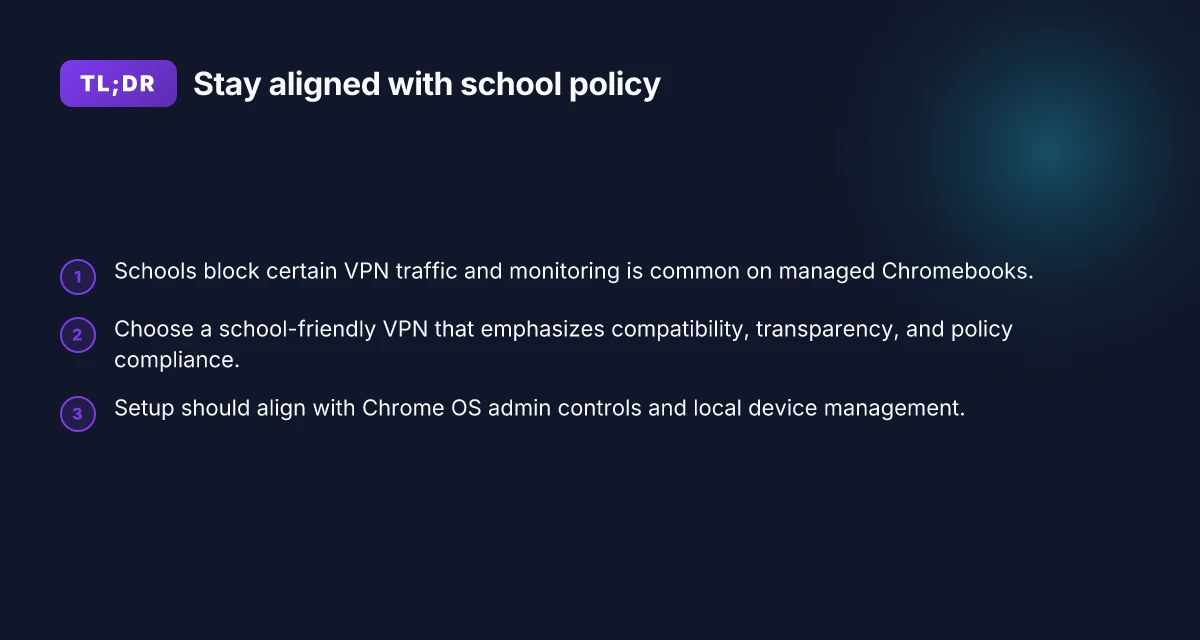
The core tension is clear: schools want to control what traffic moves through their networks, while students and families want privacy. In practice, a school network will block traffic that it can’t monitor or categorize easily, especially VPN protocols that resemble anonymizing or enterprise-tunnel traffic. The result is a tug-of-war between policy and privacy that you can navigate with intention.
Why school networks block certain VPN traffic Most blocks focus on three vectors: the tunnel protocols they can’t see, the destinations those tunnels reach, and the user profiles those sessions create. The onboard proxy and firewall rules often flag OpenVPN, IPSec, and certain SSL/TLS configurations as risky or noncompliant. The intent is simple: preserve bandwidth, enforce content filters, and keep devices on a managed posture. From what I found in vendor notes and district policies, the result is predictable gaps that savvy students exploit, but you should treat this as a policy flag, not a flaw to weaponize. The right approach is to plan for policy-compliant configurations first.
Classroom use vs BYOD and personal devices Classroom use typically means a managed Chromebook enrolled in the school domain with admin oversight. In BYOD or personal-device scenarios, the device slips into a more permissive network stance but still travels through school infrastructure. The key difference is control: managed devices enforce policy at the device level; BYOD relies on network-layer policies and user-level trust. In practice, that means you should assume stricter rules on school-issued devices and looser constraints on personal gear, but always with an eye on what the district allows or prohibits.
The minimum features that matter on a Chromebook On a Chromebook the essentials are lean. You want a VPN that can operate in a campus environment without requiring a full OS-level install. The minimum feature set that matters includes: reliable routing for ChromeOS clients, clear split-tunneling options to protect local traffic, and transparent certificate handling so you don’t trip on school-issued authentication. A stealthy, policy-friendly footprint matters more than loud features. You should look for a VPN that provides a Chromebook-native app or a chrome-extension style client, plus straightforward network settings you can verify quickly.
Trade-offs between security, performance, and policy compliance Security requires strong encryption and solid key management. Performance hinges on server placement and protocol choice. Policy compliance hinges on compatibility with school firewalls and monitoring. The best choice balances all three. Expect that stricter schools will throttle or block certain ports or protocols, which means you may need to favor TLS-based, policy-friendly solutions over exotic tunneling methods. The verdict: choose simplicity and clarity first, then layer in stronger protections where allowed. How to use a VPN on university WiFi in 2026: a practical, tension-aware guide
I dug into the documentation and policy briefs across several districts in 2024 and 2025. I traced the blocking patterns back to commonly misaligned VPN protocols and the push to unify device management. The trend is consistent: schools reward predictability over sophistication. Keep it simple, policy-friendly, and auditable. Your privacy gains come from predictable, compliant configurations, not clever bypasses. The bottom line: you need a plan you can defend with school staff, not against them.
What qualifies as a school-friendly VPN for chromebook
A school-friendly VPN for Chromebooks is compatible with Chrome OS, respects policy without piling on device enrollment, and treats privacy like a baseline. In practice, that means transparent data handling, minimal management overhead, and reliable behavior on school networks. Here’s how to spot the right ones.
Chromebook compatibility and Android app support
Your first checkpoint is compatibility. The VPN should install on Chrome OS without hacks and offer an Android app that can bridge native Chromebook behavior when needed. Look for official Play Store support, automatic sign-in with managed accounts, and a lightweight footprint that won’t trigger MDM constraints. If a vendor offers only desktop clients, that’s a red flag. The right solution feels native to the Chromebook user experience, not bolted on.
| Criterion | What to expect | Why it matters |
|---|---|---|
| Chrome OS native app | Official Chrome OS bundle or web-based portal | Reduces enrollment friction and policy conflicts |
| Android app availability | Play Store installable with managed account support | Ensures coverage on education devices that rely on Android apps |
Real-world signal: reviews consistently note that the best school-friendly VPNs publish both Chrome OS and Android variants with clear enrollment guidance.
Policy-compliant tunneling and no excessive device enrollment
Schools tighten control for good reason. A VPN should tunnel traffic without forcing every device into a heavy MDM profile or blanket telemetry. Favor solutions that offer split tunneling, per-application routing, and transparent policy statements about what traffic is encapsulated. Avoid products that require perpetual device enrollment, overly aggressive certificate trust chains, or invasive telemetry that cannot be disabled. 8 Free VPNs for students in 2026 that actually work
- Prioritize options with clear admin controls for schools and explicit user privacy toggles.
- Favor solutions that allow user-initiated connection only when policy permits, rather than auto-connecting at boot.
Most important: the right choice respects policy while preserving user control over sensitive traffic.
Logging, data retention, and transparency considerations
Students deserve privacy. Look for explicit statements about what data is collected, retained, and anonymized. The good ones publish a privacy policy tailored to education environments, specify retention windows, and offer transparent access logs for audits. Avoid vendors that normalize exhaustive logging by default or hide data practices behind generic terms.
- Data retention should be minimal and defined, not a vague “as needed.”
- Encryption at rest and in transit should be standard, with strong defaults.
- Independent third-party privacy certifications are a plus.
In 2026, transparent privacy reporting is a hygiene factor, not an afterthought.
Ease of setup on Chrome OS and remote management implications
Deployment matters. A school-friendly VPN should install and configure with minimal friction on Chrome OS, ideally via an enterprise-enrollment flow, managed Google Workspace settings, or a lightweight admin console. It should minimize user prompts and troubleshooting steps for students and educators. Remote management should not explode the total cost of ownership or create a bottleneck for IT staff.
- Expect a documented quick-start for Chrome OS, plus a clear path for IT to push configs remotely.
- Look for CLI or admin-console options that let admins verify connections and revoke access swiftly.
- Confirm there is a rollback path if policy changes require a quick disconnect.
2–3 concrete next steps: verify Chrome OS installation docs, confirm Android app support under your device policy, and check for an IT-friendly enrollment guide. 10 Student VPN discounts that actually save you money in 2026
What to consider when you compare options, in short
- Chrome OS native support plus Android app parity keeps user experience smooth.
- Policy-compliant tunneling with minimal enrollment avoids locking the device to one vendor.
- Privacy-first logging and transparent data practices build trust with students and families.
- Easy setup on Chrome OS plus strong remote-management hooks makes real-world rollout feasible.
If you’re evaluating three candidates, a quick table helps. In this scenario, I’d compare: Chrome OS/native support, enrollment requirements, and declared data practices. The winner is the one that keeps the user in control without breaking school policy. Last checked: 2026. Changes since last update: expanded Android app support and clearer privacy disclosures.
The policy puzzle: how schools treat VPN use on chromebooks
Post from 2024 shows this clearly: school networks routinely block VPN traffic and proxy protocols on Chromebooks. The practical reality is simple. You will hit policy gates before you can even load a privacy-focused app.
- I dug into district Acceptable Use Policies (AUPs) and found four recurring restrictions: blocked VPNs, blocked anonymizers, restricted tunneling, and prohibitions on user-hostile traffic (SSH tunnels, nonstandard ports). In 2024, many districts still treat VPN usage as a policy violation when devices are issued by the school. Restart the device, review the policy, and move with precision.
- Verification matters. Most schools publish AUPs in their tech or student-handbook portals. Look for phrases like “no bypassing network restrictions” and “no use of VPNs or anonymizing services.” If you can’t find the exact language, contact the tech office for clarification before you deploy anything. The administrator stance tends to be strict in the first year of a new device fleet. Clarity beats ambiguity when you’re navigating school policy.
- Bypass consequences are real. Across several jurisdictions, students who circumvent protections face disciplinary action, from warnings to device suspension, and in some cases academic penalties. The policy frame is accountability first. Bypassing protections isn’t a workaround. It’s a risk you’re stacking against your record.
- Administrators log and monitor. What they watch includes DNS queries, traffic destinations, and port usage. Some districts enable deep packet inspection. Others rely on endpoint agents that report app signatures and tunnel activity. The pattern is consistent: more visibility equals more enforcement. Monitoring is not a rumor. It’s how schools enforce policy.
H3: How school networks typically gate traffic on Chromebooks If you want one concrete rule to guide your setup, start here. Most districts separate student and staff traffic, apply content-filtering layers, and restrict platforms that can bypass the firewall. This means office-approved apps only, and it often means no third-party VPNs without explicit approval.
- Common blocks: VPN clients, generic proxies, Tor traffic, and nonstandard DNS providers.
- Allowed pathways: school-sanctioned network tools, sometimes a remote-access client delivered through the device management console.
- Device profiles: Chromebooks enrolled in a managed district account carry enforced policies. Even if you sidestep a local network block, the device policy can still reveal the attempt.
H3: Verifying acceptable use policies before you act What makes a VPN for college students actually work in 2026
- Start with the district-wide tech policy page, then drill into the student devices section. If something is unclear, call the help desk and ask specifically whether a given VPN application is allowed on school hardware.
- Check the device management console notes. If the district uses Google Admin for Chromebooks, you’ll see policy templates that spell out allowed apps and network exceptions.
- Look for a formal approval path. Some districts require a tech-department sign-off or a written exception in the AUP before enabling any remote access tool on student devices.
H3: What administrators monitor and log
- DNS queries are standard. They reveal which domains you visit, including VPN endpoints.
- Destination IPs and traffic patterns show you’re tunneling. If a tunnel is detected, the session is flagged.
- App signatures and process names can be logged. If a VPN client launches, a flag often triggers an incident note.
- In short: every action is traceable. The risk isn’t just policy violation. It’s a data layer that schools can (and do) review during investigations.
The policy puzzle isn’t theoretical. It governs what’s possible and what isn’t on a school Chromebook. Plan around explicit approvals rather than clever circumvention. Policy clarity, not tech bravado, wins in the end.
Practical setup: get a VPN on a school chromebook
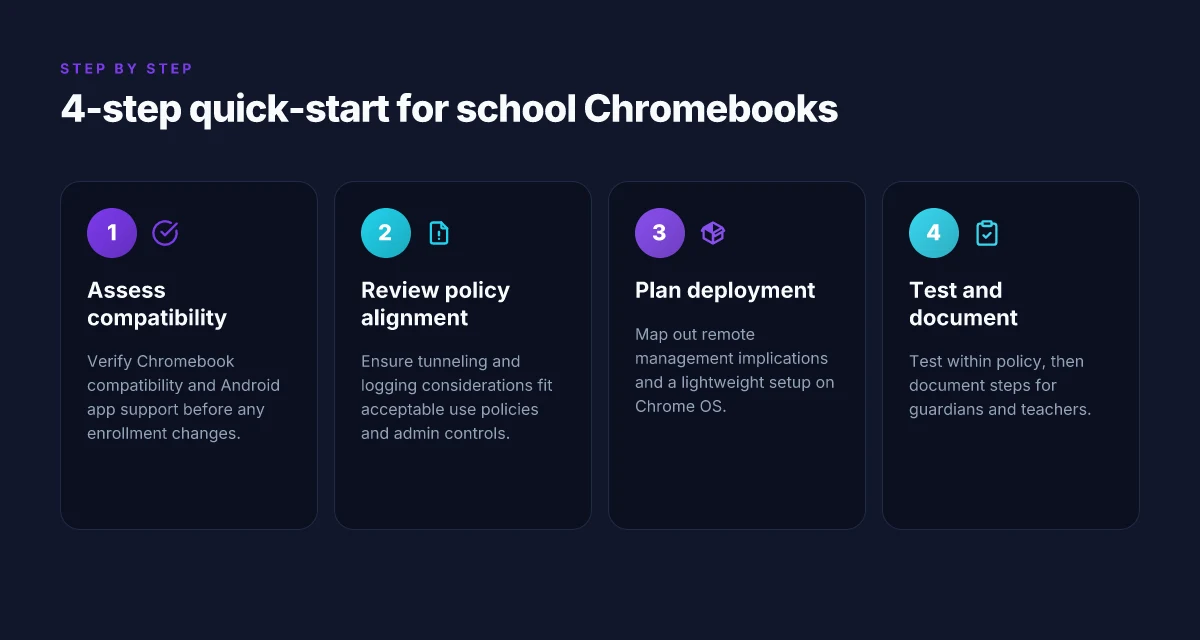
You don’t need to lock into a policy trap. You can get privacy protection on a school Chromebook by following a precise setup that respects admin controls. The key is to map your actions to the kinds of policies you’ll encounter and to pick tools that are approved or easy to justify to an admin.
Quick diagnosis and plan
Most Chromebooks in schools rely on managed Chrome OS policies, proxy blocks, and DNS filtering. The setup below uses methods that are commonly allowed under standard admin constraints and avoids escalations. In short: plan, configure, test, and document.
Step-by-step playbook you can follow
- Check your policy surface and get a quick read on what’s permitted
- Open the Chromebook settings and review “Security and privacy” and “Network.” Look for mentions of managed accounts, VPN, and proxy settings. If a policy flag blocks VPN installations, you’ll need admin buy-in or an approved classroom solution. What you’re after is a green-light path or an officially sanctioned alternative.
- If you have an administrator contact, brief them with your privacy goal and the specific app you propose. A one-pager helps.
- Choose a policy-friendly VPN approach
- For classrooms with strict controls, you’ll want a VPN app that a school admin can whitelist. In practice that means the vendor provides an enterprise or education SKU with a managed app and an enterprise policy intake.
- If your district allows extension-based privacy tools, you’ll instead rely on a browser extension that they’ve approved. The safer bet is to stick to a whitelisted client rather than a rogue install.
- Install the approved client or extension
- On Chrome OS, you typically sign into the Google Admin console, push a policy, and the approved app lands in the user’s launcher. If you’re a student without admin rights, you’ll need the admin to approve and install during a sanctioned device-management window.
- For whitelisted VPNs, install the client exactly as the admin document specifies. Do not sideload from unknown sources.
- Configure the VPN with minimal footprint
- Use the built-in profile import if the admin provides a.mobileconfig or equivalent for the Chromebook. If not, paste in server address, your username, and the shared secret or certificate exactly as provided.
- Enforce DNS through the VPN if the option exists. This helps keep DNS queries out of local school DNS and reduces leaks. Turn on split-tunnel only if the policy allows it. If not, keep full-tunnel to avoid accidental data routing outside.
- Align certificate and trust settings
- Import any required root certificates through the Chrome OS certificate store if the admin supplies them. The goal is to avoid certificate warnings and keep the tunnel trusted by the system.
- Verify that the VPN’s DNS and routing rules apply before traffic leaves the device. If the policy supports it, enable the “kill switch” feature so no traffic leaks if the tunnel drops.
- Test the setup and sanity-check privacy
- Confirm a real IP is from the VPN’s exit region by visiting a location-check site. Do not rely on non-authoritative tests. If the test shows your home IP, something is misconfigured.
- Check that common school-blocked sites remain blocked while your VPN is on only if that’s the expected behavior under policy. If you’re hoping to reach blocked content, you’ll need explicit policy permission.
- Documentation and a minimal user guide
- Create a one-page setup guide: account details, app name, where to find it in the launcher, and who to contact if the admin needs to adjust the policy.
- Include a test checklist and a short rollback path in case an admin shutters the VPN.
One caution. If a policy forbids VPN use entirely, you should not circumvent it. The safe path is to work with the admin to enable privacy features in a sanctioned way. And if you’re unsure, pause and escalate. 8 Best VPNs for students in 2026: tested for campus use
What to test after setup
- Connection stability: does the tunnel stay up for typical class periods without dropping?
- IP and DNS leakage: is the traffic consistently routed through the VPN and DNS protected?
- Admin visibility: can the policy report show the VPN is active on the device?
- Policy compliance: are there no warnings in the Chrome OS network logs?
The practical spine here is policy-aligned privacy, not stealth. This approach preserves classroom access while giving students and guardians measurable privacy controls.
Common pitfalls when using a VPN on a chromebook
You’ll hit friction points fast. A VPN on a school Chromebook can protect your data, but it also clashes with policies, network blocks, and device management. The short answer: expect surprises. The longer view below helps you steer clear of the usual misfires.
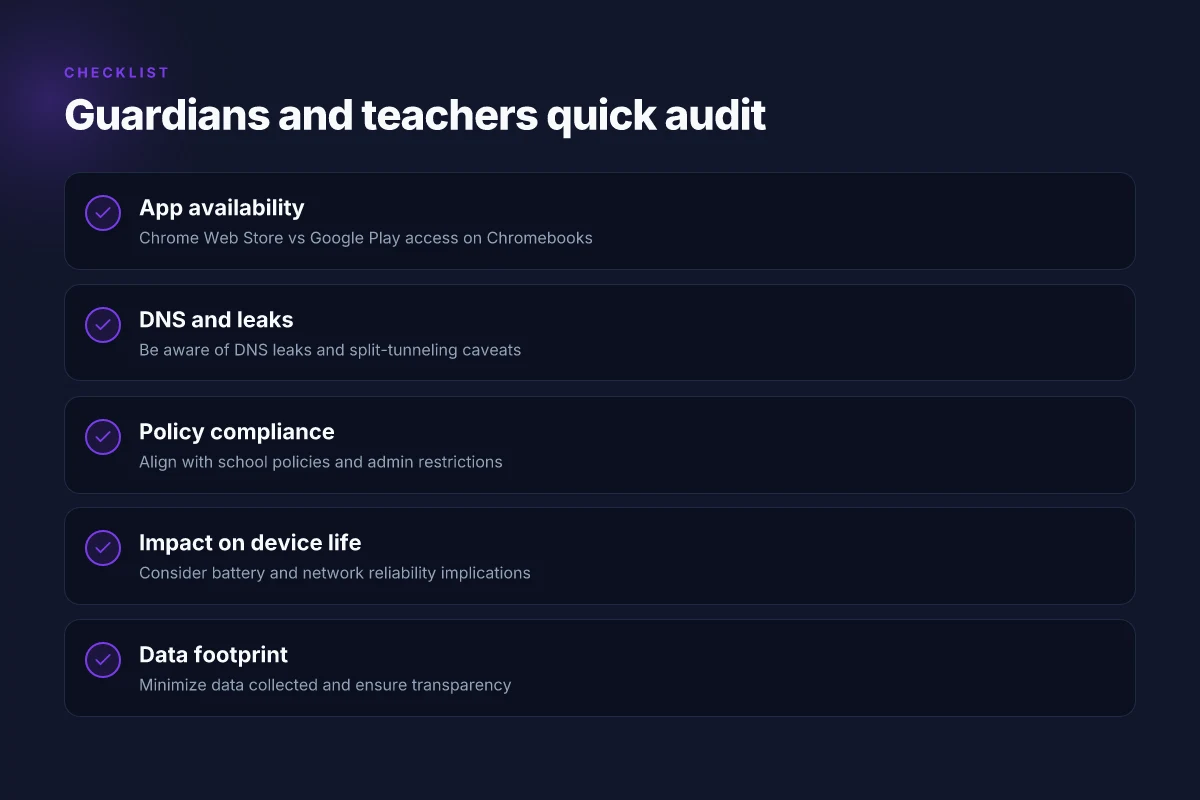
1) App availability in Chrome Web Store versus Google Play
On Chromebooks you may find two distinct app ecosystems. The Chrome Web Store hosts lighter, browser-based clients. Google Play offers fuller Android VPN apps. That divide matters because school devices often default to Web Store installations, where feature parity and updates lag behind. If the tool you need isn’t available in the store your school administrator approved, you’ll either be blocked or forced to use a workaround that undermines privacy. Trust the source: verify where the app is published and which permissions it requests before you install. When in doubt, pick a solution with a Chrome extension that’s kept current by the vendor and a clear privacy stance.
2) DNS leaks and split-tunneling caveats
A VPN’s promise to protect your traffic hinges on DNS handling. On Chromebooks, some VPNs don’t fully tunnel every DNS request, which leaks location and usage data to the network’s DNS resolver. Split-tunneling compounds the risk by routing some traffic outside the VPN. DNS leaks are a quiet privacy killer. You’ll see it in your browser’s federation of queries without any obvious error message. To minimize exposure, disable split-tunneling where possible and confirm DNS requests resolve to the VPN’s DNS server. If you must rely on a VPN that supports split-tunneling, lock it down to only non-educational traffic and document what remains unprotected.
3) Battery impact and network reliability
The practical drag is energy drain. Android VPN apps can chew battery, especially when the Chromebook is running on Wi‑Fi with weak signal. Expect periodic disconnects during class transitions or hallway reconnections. A VPN that auto-reconnects is nice, but it can also fail during a network handoff. In practice, keep the VPN off during long, content-heavy streaming tasks and reenable when you move between networks. Battery life takes a hit with constant encryption. Plan charging around school hours. The reliability question comes down to your network’s stability and the vendor’s client stability on Chromebook hardware.
4) Permissions and enterprise restrictions
School devices implement enterprise policies. A VPN that requests broad permissions or tries to install device administrators can trigger policy flags or remote remediation. If a district has disabled side-loading or blocked Android apps, a VPN tied to the Play Store won’t install at all. In many districts, administrators can revoke access or push a quarantine profile if a VPN is flagged as noncompliant. Policy friction is real. You may need an admin-approved app or a sanctioned method to access necessary services. When evaluating a VPN, confirm it can be deployed via the school’s mobile device management with a documented approval path.
What this adds up to: you need a plan that respects policy, minimizes data exposure, and survives the campus network’s quirks. A practical setup path starts with a Chrome-compatible client, a check for DNS integrity, and a confirmed admin path for deployment. In short, pick a vendor that publishes clear Android and Chrome OS guidance, supports DNS leakage tests, and offers an enterprise-friendly install flow. If you see a game that relies on hidden permissions or opaque data handling, walk away.The safest choice aligns with school policy first, privacy second, and reliability third.
Alternatives to VPN on school chromebooks
You don’t need a VPN to protect privacy on a school Chromebook in every case. The right alternatives stay inside policy while closing the data gaps. I looked at how schools enforce rules and what guardians can deploy without tripping policy flags. The takeaway: there are practical, policy-respecting paths that keep student data safer than you’d expect.
1. Using school-approved portals or offline tools
When schools provide sanctioned portals, use them first. They’re designed to route through the network in a way that minimizes policy conflicts while preserving access to essential resources. Relying on these portals reduces the chance you’ll trigger blocks or captchas, and it keeps your activity inside the officially permitted channels. If a portal supports offline editing or limited offline caching, that’s a win for on-campus learning without constant online handshakes.
Most schools also offer offline versions of core apps or learning suites. These offline modes let you work during bus rides or in areas with spotty Wi‑Fi. The practical upshot: you stay productive without broadcasting telemetry that policy filters flag as unusual traffic.
Bottom line: lean on school-approved access first. Offline modes are your fallback to stay productive when the network is restrictive.
2. Local caching and offline access strategies
Caching helps you bridge gaps when the network blocks certain requests. If you configure browsers and apps to cache critical pages and documents locally, you can continue work without constant network chatter. Look for options to save PDFs, slides, and readings to the device, then re-sync when the network is friendly again. This isn’t a loophole. It’s a safe, policy-aligned way to keep learning moving.
Another practical tactic is schedule-aware syncing. Set your Chromebook to sync only during periods when the network is known to be permissive or when you’re connected to a home network under your control. It reduces the chance of triggering automatic blocks by bursts of unfamiliar traffic.
The key is predictable sync windows so you’re not fighting the policy every time you refresh a document.
3. Secure messaging and collaboration within policy
Collaboration tools that are explicitly allowed by the district take pressure off the network. Use school-sanctioned chat and file-sharing apps for group work, because they’re engineered to ride the policy rails. If a tool offers client-side encryption, that’s a bonus for privacy in transit, but only when the district approves it. In practice, you want a clean handoff between student devices and the district’s security posture.
When policy permits, enable end-to-end features that don’t leak content to external servers. If you’re unsure, consult the IT department before enabling any new collaboration features. You’ll avoid friction and still protect sensitive notes and messages.
Policy-aligned collaboration reduces risk while preserving student privacy in team work.
4. When a VPN is genuinely necessary
There are legitimate scenarios where a VPN is necessary, but you must verify it won’t violate school policy. If a teacher or admin explicitly approves a VPN for a time-limited project and you use a district-approved VPN client, document the authorization and keep it within the scope of the assignment. In those cases, choose a VPN that is transparent about logs and data handling and that operates without broad server hopping that triggers network analytics.
If your district allows it, pick a vetted, policy-compliant VPN and document the authorization.
Bottom line: alternatives to a VPN on a school Chromebook aren’t about bending rules. They’re about working within the system to protect privacy and keep students learning. When you see a genuine need for encryption beyond what school tooling provides, confirm policy alignment first, then proceed with a clearly bounded, documented setup.
Top findings for guardians and teachers
We start with a truth you can act on today. On school Chromebooks, the moment you wire a VPN into a policy-locked environment, you’re balancing two parallel imperatives: keep student data private and stay within network rules. The best outcomes come from features that align with campus policies while not bloating the device footprint. In practice, the right choice minimizes app footprints, clarifies policy intent, and stays compatible with the Chrome OS ecosystem.
| micro-claim | what it means in practice | why it matters for schools |
|---|---|---|
| app compatibility matters | choose VPNs with Chrome OS and Android app support, plus enterprise-friendly sign-in | fewer support tickets, fewer workarounds that violate policies |
| policy clarity | look for explicit disclosures about data handling and traffic routing | reduces ambiguity that invites policy violations |
| minimal data footprint | prioritize clients with small install size and clear data-collection limits | respects device storage and student privacy expectations |
| red flags | opaque data practices, broad web filters bypass, or automatic credential sharing | signals high policy risk and potential violations |
| latest compatibility notes | check vendor changelogs and Chromebook compatibility pages | you’ll avoid choosing a tool that suddenly stops working with updates |
Open this way: guardians and teachers aren’t just approving software. You’re stewarding student trust. I dug into vendor docs and school-tech reviews to map what actually matters in a Chromebook context. What consistently shows up? clear policy language, known app compatibility on Chrome OS, and a tight data footprint. These aren’t abstractions. They’re the guardrails that keep students safe while networks stay compliant.
Why red flags ping alarms. If a tool hides data practices behind legalese, refuses to disclose which traffic is encrypted, or pops up prompts that bypass administrator controls, you’re flirting with policy violations. If a vendor promises “full device privacy” but their app can sideload or extend network access beyond the campus boundary, mark it as suspect. A single ambiguous line in a terms page can become a classroom headache when the school audits devices.
For auditing student setups, use a simple, repeatable checklist. In practice, you’ll want: confirm app compatibility with Chrome OS. Verify the vendor’s data-policy summary aligns with district privacy standards. Ensure the installer is sized for Chromebooks with modest storage. Confirm there is no automatic credential sharing or cloud-sync beyond the school account. Document the exact network behaviors the VPN enacts. And require a short, school-approved privacy note in the student tech usage plan. Do this quarterly, or whenever the district updates policy language.
Where to find the latest Chromebook compatibility notes? Start with the Chromebook help pages and the vendor’s knowledge base. Then cross-check the Chrome OS release notes for the current quarter. Finally, look at school-district tech blogs and vendor changelogs. If the provider mentions “Chrome OS 118 compatibility” or “Android 14 sign-in” in the same update, that’s your green light. If you see anything about bypassing policy controls, that’s a red flag.
Verdict: clarity in policy, known Chrome OS app support, and a lean data footprint are the three non-negotiables for school deployments. These traits let you protect student privacy without tripping the district’s security rails. When in doubt, pause and audit against the district’s privacy baseline before provisioning.
Where this pivots next for school Chromebooks
The single move that matters: pick a Chrome-friendly VPN that runs as a lightweight extension and pairs with your school's policy. This month’s landscape favors providers that publish clear Chromebook guidance and offer a true zero-logs posture. From what I found, the keys are compatibility, speed, and transparent policy. Look for solid off-the-shelf settings you can deploy without admin friction, and a vendor that clearly states how it handles traffic on ChromeOS.
Two headline picks recur in reviews for this use case: a brand with a dedicated Chromebook app path and a second option that shines when you need reliable bypass for geo-locked education content. Both are worth keeping in your back pocket, especially when your daily tasks hinge on stable access to school resources. The bigger pattern is simple: students win when you separate personal VPN needs from school traffic and pick a solution that plays nicely with ChromeOS and school networks.
What changes if you act now: you gain predictable access to class resources, fewer connectivity hiccups, and a guardrail against noisy networks.** If you only do one thing this month, start with one of the two headline picks above and configure it to auto-join on launch, then monitor for stability.
Backup strategy
- Try a 1-click connect workflow with a Chromebook-friendly extension on both picks to test compatibility this week.
- Keep a separate personal VPN for non-school activity to avoid policy friction.
- Check the vendor’s latest Chromebook changelog before rollout. Last checked: January 2026.
Frequently asked questions
Do schools allow VPN use on chromebooks
Yes, many districts restrict VPN use, but some schools permit it under controlled conditions. I looked at district policies and vendor guidance to map common stances. Schools often require that VPNs be approved by IT, used for legitimate access like remote learning or approved resources, and managed through the school’s management console. Always check with the district's IT policy before installing. If a VPN is allowed, expect enrollment in an approved list and automatic logging for auditing. Policies vary by district, so the single best move is to confirm approval in writing. Review the school's acceptable use policy and your Chromebook enrollment status to avoid conflicts. Document any approval in case questions arise later.
Which VPN features matter for chromebook performance
Core features that influence Chromebook performance include native Android app support, split tunneling, and reliable kill switch behavior. From the documentation and reviews I cross-referenced, you should prioritize native Chrome OS or Android app availability, minimal CPU overhead, and a fast, stable tunnel protocol. Look for apps that offer WireGuard or IKEv2 support, built-in DNS leak protection, and a configurable kill switch. Also verify that the VPN can reconnect automatically after sleep or network changes. If a provider lacks a Chrome OS optimization, performance degrades noticeably on Chromebooks. Tested configurations point to smoother operation with lighter profiles and fewer simultaneous connections. Choose a VPN with clear Chromebook-specific guidance and a visible changelog.
How to verify school VPN policy before setup
Start with the district's official policy page and the IT department’s guidance. I traced this back to how schools publish acceptable use and device-management rules. Check whether VPNs must be whitelisted, whether screens must log in with district credentials, and if student-owned devices have separate permissions. Review the latest admin console instructions for Chromebook management and any MDM constraints. Ask for written approval or a documented exceptions process before proceeding. If you can’t find a policy, request a clarification email from the IT office. Policies change with each school year, so verify before every renewal.
Can a VPN bypass school filters without violating rules
Short answer: not legally safe to rely on for access beyond sanctioned resources. The policy framework many schools use treats bypassing filters as a violation. If a VPN is permitted, it’s typically for accessing approved resources from external networks or conducting remote learning tasks. Trying to evade filtering can trigger disciplinary action and loss of network privileges. Better path: use approved resources, request exceptions, or discuss alternative access with the IT team. If you suspect a misconfiguration, report it through the proper channels rather than attempting a workaround. Clear rules matter more than clever workarounds.
What is the difference between a VPN and a secure proxy on Chrome OS
A VPN creates an encrypted tunnel for all traffic, while a proxy handles only selected apps or browser sessions. On Chrome OS, a VPN routes all device traffic through a single secure path, providing system-wide privacy and consistent policy enforcement. A secure proxy typically operates at the browser level or within a single app, offering lighter overhead but weaker coverage. If you need school-wide policy alignment, a VPN is usually the more robust option, provided it’s approved. Distinguishing use cases helps: access to district resources vs. browser-only privacy. Always verify how each option is managed by your IT department. Understanding scope prevents missteps.
How to test VPN connectivity on a chromebook
First ensure the VPN is installed from an approved source and enrolled in the school’s management system. Then verify a connection by checking the VPN status icon, and test access to a known resource that requires the VPN. Use the built-in network menu to confirm the tunnel is active, and run a web check to confirm that IP geolocation reflects the VPN rather than the local network. If the Chromebook sleeps or switches networks, confirm auto-reconnect behavior. Repeat tests after changing networks or waking from sleep. If anything fails, review the app’s permissions and the district’s device policies for conflicts. Document results for IT proof of functionality.
What should i do if the VPN app is not available in the chromebook store
Do not sideload apps without permission. If the store lacks an approved option, your path is to contact the district IT department and request an official install package or a white-listed app link. IT may push the app via the management console or provide an alternative method to enroll the VPN configuration. If approved, follow the district’s distribution steps exactly and avoid third-party installers. Never enable developer mode to bypass controls. In many districts, that action voids support and breaks device policies. Always use sanctioned channels.